Laptops are built to handle daily use, but they do require some care to stay reliable over time. In our repair shop, a large share of the problems we see — overheating, slow performance, failing storage — are preventable. Not with expensive accessories or complicated routines, but with a handful of consistent habits applied over the life of the machine.
This article covers the maintenance practices we'd recommend to a friend. Some of them are things you can do right now, in five minutes. Others are more about awareness — knowing what to avoid before it becomes a problem you need to bring in.
1. Take Heat Seriously
Heat is the single biggest factor in long-term laptop deterioration. It degrades the battery faster, shortens the lifespan of components on the motherboard, and is the root cause of many performance slowdowns that people misattribute to software.
Your laptop pulls in cool air through vents — typically on the bottom or sides — and expels warm air out the back or sides. When those vents are blocked or clogged, the internal temperature climbs. Over months and years, this takes a toll.
What helps:
- Use your laptop on hard, flat surfaces. Soft surfaces like beds and couch cushions block the bottom vents completely.
- Every year or two, have the internal fans and heatsink cleaned by a technician. Dust accumulation inside the case is unavoidable — it just needs to be addressed periodically.
- If the laptop runs noticeably hot during light tasks, that's worth investigating. It usually means either the thermal paste on the processor has dried out, or the cooling system needs cleaning.
- Laptop cooling pads can help in hot environments, but they're not a substitute for cleaning the internal components if dust buildup is the actual issue.
A laptop that runs at healthy temperatures consistently will outlast one that runs hot — even if both have identical hardware.
2. Care for the Battery
Battery wear is natural and unavoidable over time, but how you use and charge the laptop affects how quickly that wear accumulates.
Modern lithium-ion batteries don't respond well to being kept at extreme charge levels for extended periods. Sitting at 100% charge while plugged in for weeks at a time, or regularly draining to near zero, both accelerate capacity loss.
Reasonable habits:
- If you use your laptop mostly at a desk, plugged in, consider whether your machine has a battery charge limit feature. Many newer laptops (especially those running Windows 11 or recent macOS) let you cap the charge at around 80%, which reduces long-term wear.
- For laptops used unplugged frequently, try to plug in before the battery drops below 20% where possible — deep discharges add cycle wear faster than moderate ones.
- Avoid storing a laptop for long periods at a very low or very high charge level. If you're putting it away for weeks, somewhere around 50% is better for the battery.
Battery replacement is a common and usually straightforward repair. If your battery capacity has dropped significantly, it's worth replacing rather than putting up with short runtimes — it changes the usability of the machine noticeably.
3. Keep the Software Environment Tidy
Software doesn't wear out the way hardware does, but a cluttered software environment does slow things down and can create security exposure.
A few things worth doing:
- Keep the operating system updated. Updates address security vulnerabilities that are actively exploited. Keeping them current is one of the most effective things you can do for the health and security of the machine. Disabling automatic updates to avoid reboots is understandable, but try to apply them within a reasonable time.
- Be selective about startup programs. Many applications configure themselves to launch at startup without making this obvious. Over time, startup times slow down and background resource usage creeps up. On Windows, the Task Manager (Ctrl + Shift + Esc → Startup tab) lets you see and disable these. On Mac, System Settings → General → Login Items does the same.
- Uninstall software you don't use. Old applications sitting on the drive don't actively harm anything, but they take up storage space and can sometimes run background services you're not aware of.
- Don't rely solely on free antivirus tools from unfamiliar sources. Windows Defender, which comes built into Windows, is genuinely adequate for most users. Third-party security software from reputable sources can add value, but many low-quality tools in this category do more harm than good.
4. Manage Storage Responsibly
Storage drives — whether traditional spinning hard drives or modern solid-state drives — have limits that are worth understanding.
For hard disk drives (HDDs): These are mechanical devices with moving parts. They're more sensitive to physical shock than SSDs, and they slow down when heavily fragmented. If your laptop is older and uses an HDD, consider whether an SSD upgrade might be worthwhile — the performance difference is significant, and SSDs are more durable under normal use.
For solid-state drives (SSDs): These have a finite number of write cycles, but for most typical users, this is not a practical concern — modern SSDs are rated for well beyond what average use would reach in a decade. The more relevant concern is keeping enough free space available. SSDs can experience performance degradation when filled to near capacity. Try to keep at least 10–15% of the drive free.
Either way: Back up your data. A drive can fail unexpectedly, and no maintenance habit prevents that entirely. An external drive or cloud backup running regularly means a hardware failure doesn't result in data loss. This is the single most important advice in this entire article.
5. Handle the Machine with Care
This sounds obvious, but physical handling habits have a meaningful effect on longevity.
- The hinge is a weak point. Opening and closing the lid from the centre (near the camera) rather than from one corner distributes stress more evenly. Hinge damage is a common repair — and it's almost always caused gradually over time, not from a single incident.
- Don't close the lid with objects on the keyboard. Pens, cables, or anything resting on the keys can crack the screen when the lid is closed.
- Liquids near laptops are a risk worth taking seriously. If something does spill, power off immediately, tilt the machine to help liquid drain away from the internals, and bring it in as soon as possible. The faster liquid damage is addressed, the better the outcome tends to be.
- Use a sleeve or padded bag. Laptop bags that offer some cushioning for the bottom and corners protect against the minor bumps that add up over years of transport.
6. Clean the Exterior and Screen
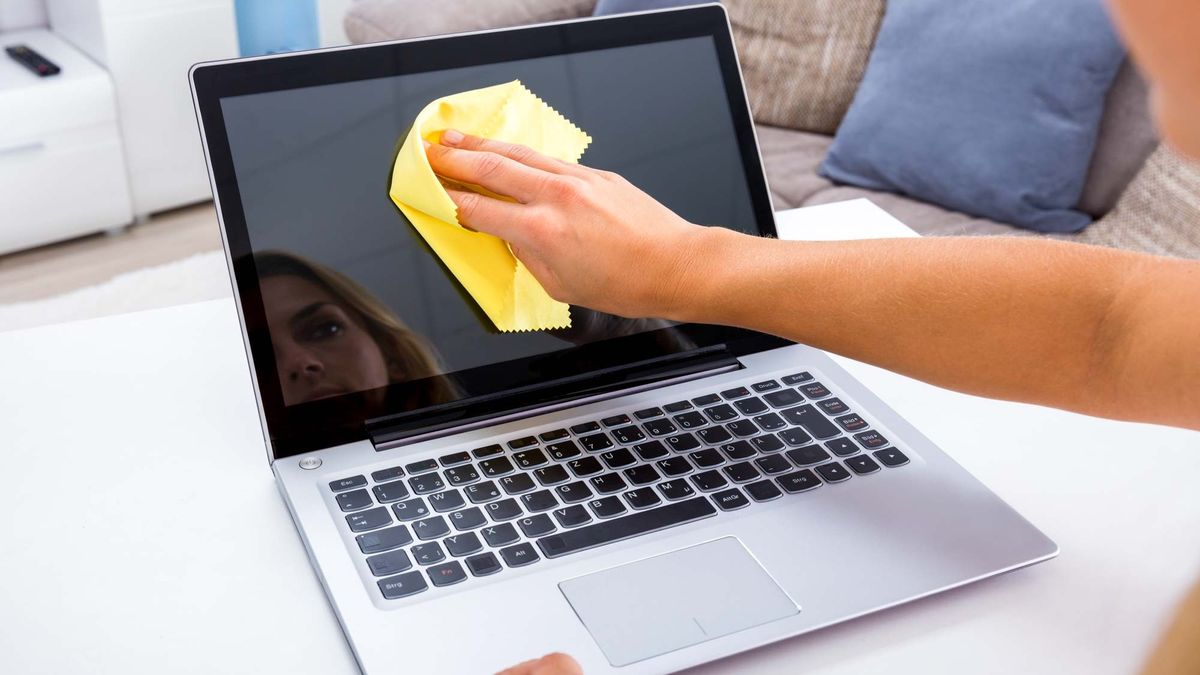
This is more about preserving the usability of the machine than its internal health, but it's worth mentioning. Keyboards, in particular, accumulate dust, debris, and oils from skin contact. Compressed air (available at most office supply stores) can clear debris from between the keys. For the screen, a microfibre cloth with a small amount of distilled water — or a screen cleaning solution — works well. Avoid paper towels or rough cloths, which can scratch screen coatings over time.
For the keyboard, avoid spraying anything directly onto it. Apply any cleaning solution to the cloth first. This prevents liquid from seeping under the keys.
A Realistic Outlook
No maintenance routine makes a laptop last forever, and a machine that's 8 or 9 years old may reach a point where repairs stop making economic sense regardless of how well it was cared for. But the difference between a well-maintained laptop and a neglected one — in terms of how long it stays useful — is genuinely significant.
The machines we see come in for repair that were clearly looked after tend to have fewer problems overall, and when they do need work, the issues are usually more isolated. A laptop that's run hot for years due to dust accumulation can have cascading failures — a component failure that might have been a simple repair becomes more complex when surrounding components have also been stressed.
If you're unsure about the current state of your machine, or if you've noticed changes in performance or temperature, it's worth having someone look at it. A diagnostic check doesn't commit you to a repair — it just gives you a clearer picture of where things stand.
Questions About Your Laptop?
If you're noticing issues or just want a health check on your machine, we're happy to take a look. No pressure, no commitment — just an honest assessment.
Get in Touch